
Mercedes Sedan Gesture Control System: Effortless Guide
The Mercedes-Benz Gesture Control system lets you manage certain vehicle functions with simple hand movements. Wave to adjust the volume, answer calls, or control map functions without touching a button. It adds a layer of convenience and safety while driving.
Ever feel like you’re juggling too many tasks while driving your Mercedes? You’re trying to navigate, change the music, and answer a call, all while keeping your eyes on the road. It can be frustrating and even a little dangerous. The Mercedes-Benz Gesture Control system, known as MBUX Interior Assistant, is designed to make your driving experience smoother and more intuitive. With simple hand movements, you can control various functions without taking your hands off the wheel or your eyes off the road.
This guide will walk you through everything you need to know about the Mercedes sedan gesture control system. We’ll cover how it works, what gestures you can use, how to customize it, and troubleshooting tips to keep it running smoothly. Let’s dive in and explore this innovative feature!
Frequently Asked Questions
- What is Mercedes-Benz Gesture Control?
- Mercedes-Benz Gesture Control, or MBUX Interior Assistant, allows you to control certain car functions using hand gestures instead of buttons or voice commands.
- Which Mercedes models have Gesture Control?
- Gesture Control is available on select Mercedes-Benz models, typically higher-end sedans, SUVs, and coupes, starting from 2019 and newer models.
- How do I activate Gesture Control?
- Gesture Control is typically activated by default. You can check and adjust the settings in the MBUX system under “Settings” and then “Interior Assistant”.
- What gestures can I use?
- Common gestures include waving to adjust volume, pointing to control map functions, and answering calls with a specific hand motion. The available gestures may vary by model.
- Can I customize the Gesture Control settings?
- Yes, you can customize certain aspects of Gesture Control, such as sensitivity and which gestures activate specific functions, through the MBUX system settings.
- What do I do if Gesture Control isn’t working?
- First, ensure the system is enabled in the settings. If it’s still not working, try cleaning the sensor area, restarting the MBUX system, or consulting your Mercedes-Benz dealer for assistance.
- Is Gesture Control available on older Mercedes models?
- Gesture Control is generally available on newer Mercedes-Benz models, typically those from 2019 onwards. Older models usually do not have this feature.
Understanding the Mercedes-Benz Gesture Control System

The Mercedes-Benz Gesture Control system, officially known as MBUX Interior Assistant, is an innovative feature designed to enhance the driving experience by allowing drivers and passengers to control various vehicle functions using simple hand gestures. This technology aims to reduce driver distraction and increase convenience by providing an intuitive, touch-free interface.
Key Components of the Gesture Control System
The Gesture Control system relies on several key components working together to accurately interpret and execute gestures:
- Infrared Cameras: These cameras are strategically placed within the vehicle’s interior, typically in the headliner or near the rearview mirror. They capture and track the movements of the driver’s and front passenger’s hands and arms.
- Sensors: In addition to cameras, the system uses various sensors to detect the proximity and direction of hand movements. These sensors help to differentiate between intentional gestures and accidental movements.
- MBUX System: The Mercedes-Benz User Experience (MBUX) system is the central hub that processes the data from the cameras and sensors. It interprets the gestures and translates them into commands to control various vehicle functions.
- Software Algorithms: Sophisticated software algorithms analyze the captured movements and determine the intended function. These algorithms are designed to recognize specific gestures and filter out unintended hand motions.
How the System Works
The Gesture Control system operates through a series of steps that involve capturing, interpreting, and executing hand gestures:
- Gesture Detection: The infrared cameras and sensors continuously monitor the interior of the vehicle, looking for hand movements.
- Data Capture: Once a gesture is detected, the system captures detailed data about the movement, including its speed, direction, and shape.
- Gesture Recognition: The MBUX system analyzes the captured data using complex algorithms to identify the specific gesture being performed.
- Command Execution: Once the gesture is recognized, the system executes the corresponding command, such as adjusting the volume, answering a call, or navigating the map.
- Feedback: The system provides visual or auditory feedback to confirm that the gesture has been recognized and the command has been executed. This feedback helps the user understand that the system is working correctly.
Which Mercedes Models Offer Gesture Control?

Gesture Control is available on select Mercedes-Benz models, typically higher-end sedans, SUVs, and coupes. Here’s a table outlining some of the models that commonly feature this technology:
| Model | Year(s) | Trim Levels | Notes |
|---|---|---|---|
| Mercedes-Benz S-Class | 2019-Present | All | Flagship sedan with advanced technology features. |
| Mercedes-Benz GLE | 2020-Present | All | Luxury SUV with a focus on comfort and innovation. |
| Mercedes-Benz GLS | 2020-Present | All | Full-size SUV offering premium features and spaciousness. |
| Mercedes-Benz E-Class | 2021-Present | Selected trims | Mid-size sedan with available high-tech options. |
| Mercedes-Benz CLS | 2019-Present | All | Coupe-like sedan with sleek design and advanced features. |
| Mercedes-Benz A-Class | 2019-Present | Selected trims | Compact car with available MBUX Interior Assistant. |
| Mercedes-Benz B-Class | 2019-Present | Selected trims | Compact multi-purpose vehicle with available MBUX Interior Assistant. |
Note: The availability of Gesture Control can vary depending on the model year and specific trim level. It’s always best to check the vehicle’s specifications or consult with a Mercedes-Benz dealer to confirm whether Gesture Control is included.
Common Gestures and Their Functions

The Mercedes-Benz Gesture Control system recognizes a variety of gestures, each designed to control specific functions within the vehicle. Here are some of the most common gestures and their corresponding actions:
- Volume Adjustment:
- Gesture: Rotating your index finger in a clockwise or counterclockwise motion near the center console.
- Function: Increases or decreases the audio volume. Clockwise rotation increases the volume, while counterclockwise rotation decreases it.
- Answering Calls:
- Gesture: Pointing two fingers towards the screen.
- Function: Accepts an incoming phone call.
- Rejecting Calls:
- Gesture: Making a fist in the air and moving it away from the screen.
- Function: Rejects an incoming phone call.
- Activating Reading Lights:
- Gesture: Briefly holding your hand under the rearview mirror.
- Function: Turns on or off the reading lights for the driver or front passenger.
- Navigating the Map:
- Gesture: Pointing your index finger at the central display.
- Function: Allows you to interact with the navigation map, such as zooming in or out, or moving the map to a different location.
- Favorite Function Activation:
- Gesture: Holding your hand in a peace sign towards the screen.
- Function: Activates a pre-selected favorite function, which can be customized in the MBUX settings.
How to Customize Gesture Control Settings

The Mercedes-Benz Gesture Control system offers several customization options, allowing you to tailor the system to your preferences. Here’s how to access and adjust the Gesture Control settings:
- Accessing the MBUX System:
- Start by turning on your Mercedes-Benz vehicle.
- Navigate to the main menu of the MBUX system using the touchpad on the center console, the touchscreen display, or the touch-sensitive buttons on the steering wheel.
- Navigating to Settings:
- Look for the “Settings” icon in the main menu. It usually resembles a gear or cogwheel.
- Select the “Settings” icon to open the settings menu.
- Finding the “Interior Assistant” or “Gesture Control” Menu:
- Within the settings menu, look for an option labeled “Interior Assistant,” “Gesture Control,” or something similar. The exact name may vary depending on the model and software version.
- Select the “Interior Assistant” or “Gesture Control” option to access the customization settings.
- Adjusting Gesture Sensitivity:
- One of the most common customization options is adjusting the sensitivity of the gesture recognition.
- You may find a slider or a set of options (e.g., Low, Medium, High) to adjust the sensitivity level.
- Experiment with different sensitivity levels to find the setting that works best for you. A higher sensitivity level may recognize gestures more easily but could also lead to unintended activations.
- Customizing Favorite Functions:
- Some Mercedes-Benz models allow you to assign a specific function to a particular gesture, such as the “peace sign” gesture.
- In the customization menu, look for an option to customize the “Favorite Function” or a similar setting.
- Select the function you want to assign to the gesture, such as activating the massage function, adjusting the climate control, or opening a specific menu.
- Enabling or Disabling Specific Gestures:
- In some cases, you may want to disable certain gestures that you find yourself accidentally triggering.
- The customization menu may allow you to enable or disable individual gestures.
- Review the list of available gestures and disable any that you don’t want to use.
- Saving Your Settings:
- Once you have made your desired adjustments, be sure to save your settings.
- Look for a “Save,” “Apply,” or “OK” button in the customization menu.
- Select the button to save your changes.
Tips for Using the Gesture Control System Effectively
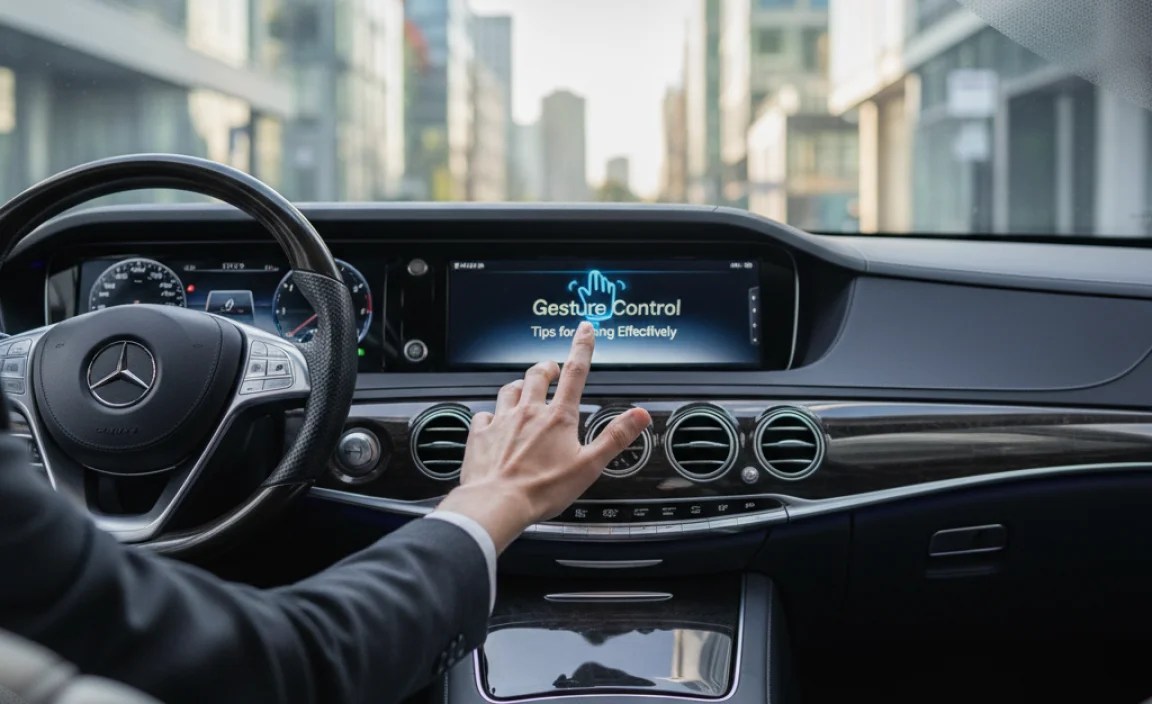
To get the most out of your Mercedes-Benz Gesture Control system, keep these tips in mind:
- Learn the Gestures:
- Take some time to familiarize yourself with the available gestures and their corresponding functions.
- Practice the gestures in a stationary vehicle to get a feel for the correct movements.
- Position Your Hands Correctly:
- Make sure your hands are positioned within the detection range of the system’s cameras and sensors.
- Avoid obstructing the cameras or sensors with objects or clothing.
- Use Clear and Deliberate Movements:
- Perform gestures with clear and deliberate movements to ensure that the system recognizes them accurately.
- Avoid making quick or jerky movements, as these may not be recognized.
- Adjust Sensitivity Settings:
- Experiment with the sensitivity settings to find the level that works best for you.
- If you find that the system is too sensitive, reduce the sensitivity level. If it’s not sensitive enough, increase the sensitivity level.
- Keep the Sensors Clean:
- Regularly clean the sensors and cameras to ensure that they are free of dust, dirt, and debris.
- Use a soft, lint-free cloth to gently wipe the sensors and cameras.
- Avoid Obstructions:
- Avoid placing objects or clothing in front of the sensors or cameras, as this can interfere with their ability to detect gestures.
- Make sure that your hands are not obstructed by anything when performing gestures.
- Use in Conjunction with Voice Control:
- The Gesture Control system is designed to complement the voice control system, not replace it.
- Use voice commands for functions that are not easily controlled with gestures, such as entering a navigation destination or making a phone call.
Troubleshooting Common Issues
Even with proper use, you may encounter issues with your Mercedes-Benz Gesture Control system. Here are some common problems and how to troubleshoot them:
| Problem | Possible Causes | Solutions |
|---|---|---|
| Gestures Not Recognized |
|
|
| Unintended Activations |
|
|
| System Not Responding |
|
|
| Inconsistent Performance |
|
|
When to Seek Professional Help
If you’ve tried the troubleshooting steps above and are still experiencing issues with your Gesture Control system, it may be time to seek professional help. Contact your local Mercedes-Benz dealer or a qualified automotive technician for assistance. They will have the expertise and diagnostic tools necessary to identify and resolve more complex problems.
The Future of Gesture Control in Mercedes-Benz Vehicles
The Gesture Control system is constantly evolving as Mercedes-Benz continues to innovate and improve its technology. Here are some potential future developments:
- Expanded Gesture Recognition:
- Future versions of the system may recognize a wider range of gestures, allowing for more control over vehicle functions.
- New gestures could be added to control features such as the sunroof, ambient lighting, and seat adjustments.
- Personalized Gesture Profiles:
- The system may be able to learn and adapt to individual users’ preferences, creating personalized gesture profiles.
- This would allow each driver to customize the system to their specific needs and habits.
- Integration with Augmented Reality:
- Gesture Control could be integrated with augmented reality (AR) technology to provide a more immersive and intuitive user experience.
- AR overlays could be used to provide visual feedback and guidance for performing gestures.
- Improved Accuracy and Reliability:
- Ongoing research and development efforts will focus on improving the accuracy and reliability of the Gesture Control system.
- This will help to reduce the likelihood of unintended activations and ensure that gestures are recognized consistently.
- Enhanced Safety Features:
- Gesture Control could be used to enhance safety features, such as driver monitoring and alert systems.
- The system could detect signs of driver drowsiness or distraction and provide alerts to help prevent accidents, referencing studies on automotive safety from institutions like the Insurance Institute for Highway Safety (IIHS).
Conclusion
The Mercedes-Benz Gesture Control system is a testament to the brand’s commitment to innovation and enhancing the driving experience. By understanding how the system works, the available gestures, and how to customize the settings, you can take full advantage of this technology. Whether it’s adjusting the volume with a simple wave or answering a call with a point of your fingers, the Gesture Control system adds a layer of convenience and sophistication to your Mercedes-Benz vehicle. Keep experimenting, stay updated with new features, and enjoy the future of driving, right at your fingertips.
“`


