
Mercedes S Class Bluetooth Issues: Ultimate Fix
Having trouble with your Mercedes S Class Bluetooth? This ultimate fix guide offers simple, step-by-step solutions, from restarting your system to pairing and troubleshooting common connection problems, so you can enjoy seamless audio and calls again.
The Mercedes-Benz S-Class is the pinnacle of luxury and technology, offering an unparalleled driving experience. However, even the most sophisticated systems can sometimes encounter minor hiccups. One common frustration for S-Class owners is intermittent or non-functional Bluetooth connectivity. This can disrupt your calls, music streaming, and navigation audio, taking away from the seamless experience you expect. Don’t worry, these issues are often resolvable with a few straightforward troubleshooting steps. This guide will walk you through everything you need to know to get your S-Class Bluetooth working perfectly again.
Frequently Asked Questions
Why does my Mercedes S Class Bluetooth keep failing to pair?
Bluetooth pairing can fail for several reasons. The most common include outdated firmware on your phone or car system, an existing device limit on the car’s system, or interference from other devices. Ensure your phone’s Bluetooth is discoverable and that the car’s system is ready to pair by following the on-screen prompts.
My phone is paired, but there’s no connection. What should I do?
If your phone shows as paired but isn’t connecting, try forgetting the device on both your phone and the car’s COMAND (or MBUX) system, then re-pair. Also, check that Bluetooth is enabled on your phone and that the correct audio source is selected in your car’s media menu.
Why is my Bluetooth audio quality so poor or choppy?
Poor audio quality is often due to signal interference. This can come from your phone’s case, other active Bluetooth devices nearby, or even the distance between your phone and the car’s Bluetooth module. Try moving your phone closer to the infotainment screen or disabling other Bluetooth devices temporarily.
My phone keeps disconnecting from the S Class Bluetooth. How do I fix this?
Frequent disconnections can occur if your phone’s power-saving settings are too aggressive and shut down Bluetooth to conserve battery. Also, ensure your phone’s operating system and the car’s infotainment system are up-to-date. Sometimes, a faulty power cable connected to your phone while driving can also cause interruptions.
Is there a Bluetooth software update for my Mercedes S Class?
Yes, Mercedes-Benz periodically releases software updates for their infotainment systems, which can include improvements and fixes for Bluetooth connectivity. These updates are typically performed by a dealership. You can inquire about available updates during your next service visit.
My Bluetooth stopped working after a phone update. What happened?
Phone operating system updates can sometimes introduce compatibility issues with older car infotainment systems. If your Bluetooth stopped working after updating your phone, try forgetting the car from your phone and re-pairing. If the issue persists, check if your car’s system has a pending software update or if your mobile carrier has addressed any known issues.
Quick & Easy Bluetooth Fixes to Try First

Before diving into deeper troubleshooting, let’s start with the simplest solutions that often resolve common Mercedes S Class Bluetooth issues. These are quick to implement and require no technical expertise.
1. Restart Your Phone and Infotainment System
This is the golden rule of tech troubleshooting. A simple restart can clear temporary glitches in both your smartphone and your S-Class’s COMAND or MBUX system.
- For your phone: Power it off completely, wait about 30 seconds, and then turn it back on.
- For your S-Class: To restart the infotainment system, you can often hold down the power button for your COMAND/MBUX screen for an extended period (usually 10-15 seconds) until the system reboots. Alternatively, shutting down the car, locking it, and waiting a few minutes can also reset the system.
2. Ensure Bluetooth is Enabled and Discoverable on Your Phone
It sounds basic, but it’s easy to accidentally toggle Bluetooth off.
- Go to your phone’s Settings.
- Navigate to the Bluetooth menu.
- Make sure the toggle is switched On.
- Ensure your phone is set to be Discoverable or Visible, especially during the pairing process. The exact wording might vary depending on your phone’s operating system (iOS or Android).
3. Verify Bluetooth is Active in Your S-Class
Similar to your phone, the car’s system also needs Bluetooth enabled.
- On your S-Class infotainment screen, navigate to the Phone or Bluetooth menu.
- Look for an option to Enable Bluetooth or ensure it’s not set to ‘Off’.
- The system should indicate it’s ready to discover or pair devices.
4. Toggle Bluetooth On and Off
Sometimes, simply turning the Bluetooth function off and then back on can re-establish a proper connection.
- On your phone, go to Settings > Bluetooth and toggle it Off. Wait a few seconds, then toggle it back On.
- In your S-Class, go to the Phone/Bluetooth menu and disable Bluetooth, then re-enable it.
The Correct Pairing Process: Step-by-Step
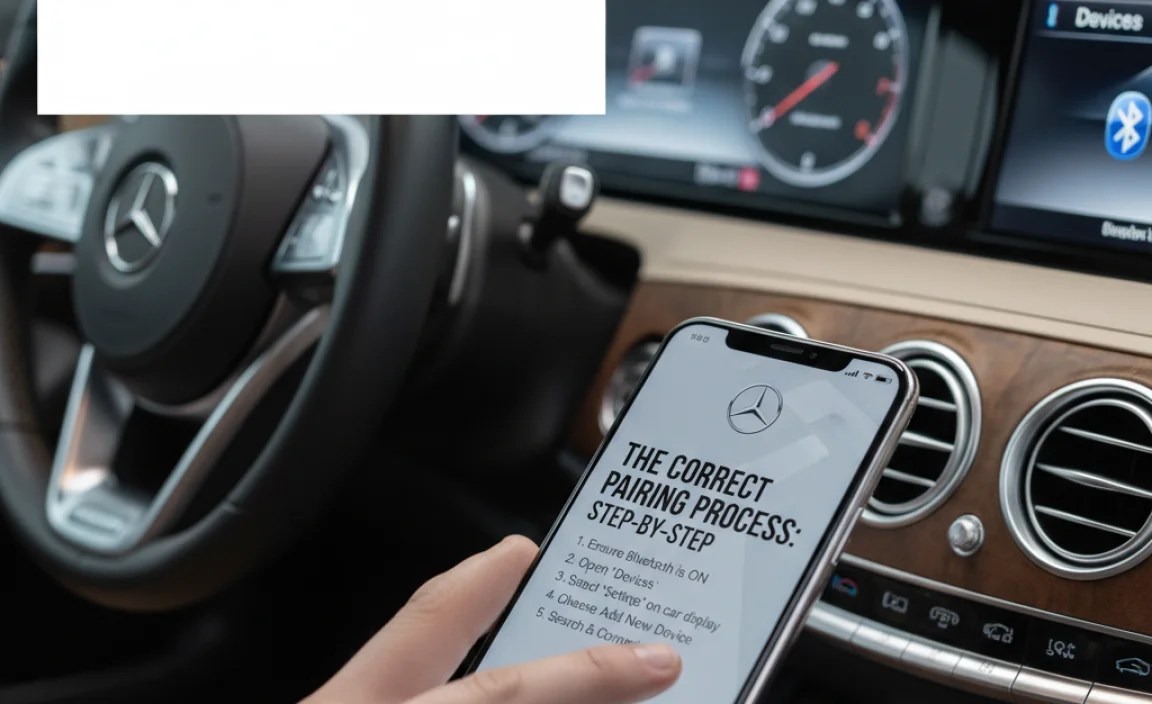
If your S-Class Bluetooth is completely unresponsive or won’t connect, re-pairing is often the solution. Follow these steps carefully to ensure a successful connection between your phone and your luxury sedan.
Step 1: Prepare Your Devices
Before you start, ensure you have a stable environment. You might want to be parked in a safe location.
- Make sure your phone’s battery is sufficiently charged.
- Turn off any unnecessary Bluetooth devices that are in close proximity to your car.
- Familiarize yourself with your phone’s Bluetooth settings and your S-Class’s infotainment interface.
Step 2: Initiate Pairing from Your S-Class Infotainment System
The pairing process should ideally be initiated from the car’s system.
- Turn on your S-Class and start the engine.
- On the COMAND or MBUX screen, navigate to Phone > Bluetooth.
- Select an option like Add Phone, Connect Device, or Search for Devices.
- Follow the on-screen prompts. The system will likely instruct you to make your phone discoverable.
Step 3: Make Your Phone Discoverable and Select Your S-Class
Now, switch to your smartphone.
- On your phone, go to Settings > Bluetooth.
- Ensure Bluetooth is On and your phone is set to be Discoverable.
- Your S-Class should appear in the list of available devices on your phone. It might be labeled as “Mercedes-Benz,” followed by a model identifier.
- Tap on your S-Class in the list.
Step 4: Confirm Pairing (PIN/Passcode)
A crucial step to ensure secure pairing.
- Both your phone and your S-Class infotainment screen will likely display a PIN code or passkey.
- Verify that the PIN codes match exactly.
- If they match, confirm the pairing on both your phone and the car’s screen. You might need to tap “Pair,” “Connect,” or “Yes.”
- Grant any necessary permissions your phone requests, such as access to contacts and call history, to enable full functionality.
After successful pairing, your phone should appear in the list of connected devices in your S-Class. You can now set it as the primary phone for calls and audio.
Troubleshooting Common Mercedes S Class Bluetooth Issues

Even with the correct pairing process, you might encounter specific problems. Here’s how to tackle them.
Issue 1: Phone Not Detected During Pairing
If your S-Class cannot find your phone, or your phone cannot find the S-Class, try these steps:
- Clear Paired Devices: Go into your car’s Bluetooth settings and delete all previously paired phones. Do the same on your phone by “forgetting” your Mercedes. Then, attempt to re-pair.
- Check Device Limit: Many infotainment systems have a limit on the number of devices that can be paired. If you’ve reached this limit, you’ll need to remove an old device. Check your car’s manual for specific instructions.
- Interference: Ensure there aren’t too many other active Bluetooth devices or Wi-Fi hotspots near the car, as they can interfere with the discovery process.
- Phone Restart: As mentioned earlier, a simple restart of your phone can resolve detection issues.
Issue 2: Frequent Disconnections
This can be incredibly annoying, especially during calls or while streaming music.
- Update Your Phone’s OS: Software bugs in your phone’s operating system can cause connectivity problems. Ensure you have the latest version installed. You can usually check this in your phone’s Settings > System > Software Update.
- Check Phone Power Saving Settings: Some aggressive power-saving modes on smartphones can aggressively manage background processes, including Bluetooth. Go to your phone’s battery settings and ensure Bluetooth is allowed to run without restrictions, or disable aggressive optimization for Bluetooth apps.
- USB Connection Interference: If your phone is connected via USB (e.g., for Apple CarPlay or Android Auto), this can sometimes interfere with Bluetooth stability. Try disconnecting the USB cable and see if the Bluetooth connection improves.
- Firmware Update for Car: As mentioned in the FAQ, vehicle software updates are crucial. These can be obtained at a Mercedes-Benz dealership.
Issue 3: Poor or Choppy Bluetooth Audio Quality
Stuttering music or robotic voices during calls are common signs of poor Bluetooth connection quality.
- Reduce Distance and Obstructions: Keep your phone closer to the infotainment system. While S-Class systems are generally robust, direct line-of-sight is always best. Avoid placing your phone in cluttered areas like the bottom of a deep center console.
- Check Phone Case: Some metallic or very thick phone cases can impede Bluetooth signals. Try removing your phone case temporarily to see if audio quality improves.
- Close Other Audio Apps: Ensure no other apps are trying to stream audio simultaneously. Close any background apps that might be using audio resources.
- Select the Right Source: In your S-Class media menu, make sure “Bluetooth Audio” is selected as the playback source.
Issue 4: Calls Don’t Work, But Music Does (or Vice Versa)
This often points to a profile issue or permission problem.
- Check Bluetooth Profiles: Bluetooth devices use different profiles for various functions (e.g., A2DP for music, HFP for calls). Ensure both your phone and car support the necessary profiles and that they are enabled. Your phone’s Bluetooth settings might show connection options per device, allowing you to enable/disable phone calls and media audio.
- Grant Permissions: When you first pair your phone, the car system will ask for permission to access your contacts and call history. If you denied these permissions, certain call functions might not work. Go back into your S-Class Bluetooth settings for your phone and ensure all requested permissions (Contacts, Call History, Messages) are granted. On your phone, go to Settings > Apps > [Your Car’s App, if applicable] > Permissions or Settings > Bluetooth > [Your Mercedes] > Permissions.
- Re-pair and Grant Permissions Promptly: Delete the pairing from both devices, ensure your phone is set to grant all permissions during the next pairing, and re-pair carefully, accepting all prompts.
Advanced Troubleshooting and When to Seek Help

If none of the basic or intermediate steps resolve your Mercedes S Class Bluetooth issues, it’s time to consider more advanced options.
Factory Reset the Infotainment System
A factory reset will revert your COMAND or MBUX system to its original settings. This can resolve deep-seated software glitches that don’t respond to a simple reboot.
Caution: This will erase all your personalized settings, presets, saved navigation destinations, and paired devices. Make sure you’re prepared to reconfigure your system afterward. Consult your S-Class owner’s manual or a dealership for the exact procedure for your model year, as it can vary. Typically, it involves navigating through the system’s setup or service menu.
Check for Recalls or Technical Service Bulletins (TSBs)
Mercedes-Benz sometimes issues recalls or TSBs for specific issues affecting their vehicles, including infotainment and Bluetooth problems. A recall would be a safety-related fix addressed by the manufacturer, while a TSB is information for technicians regarding common problems and their solutions.
You can check for recalls and potential TSBs relevant to your S-Class by entering your Vehicle Identification Number (VIN) on the National Highway Traffic Safety Administration (NHTSA) website.
Verify Phone Compatibility
While modern smartphones are generally compatible, some older models or very specific configurations might not work flawlessly. Mercedes-Benz often provides a list of officially tested and compatible phones. This information can usually be found in your owner’s manual, on the Mercedes-Benz website for your region, or by asking a dealership. If your phone isn’t on the list, it doesn’t guarantee it won’t work, but it means its performance might be less predictable.
When to Consult a Mercedes-Benz Dealership
If you’ve diligently followed all the troubleshooting steps, performed a factory reset, and are still experiencing persistent Bluetooth issues, it’s time to seek professional help.
There could be a hardware fault within the Bluetooth module itself or a more complex software issue that requires specialized diagnostic tools. A certified Mercedes-Benz technician will have the expertise and equipment to:
- Perform a full diagnostic scan of the infotainment system.
- Apply the latest software updates and patches officially released by Mercedes-Benz.
- Test and potentially replace faulty hardware components.
- Re-program control modules if necessary.
Don’t hesitate to schedule an appointment. They are equipped to handle the intricacies of your luxury vehicle’s technology.
Preventative Maintenance for Seamless Bluetooth

Keeping your S-Class’s technology in top shape is key to avoiding future frustrations. A little prevention goes a long way.
Regular Software Updates
As highlighted earlier, staying current with your infotainment system’s software is vital. Make it a habit to ask your service advisor about available updates during routine maintenance visits. These updates not only fix bugs but can also introduce new features and improve overall system performance.
Keep Connections Clean
While not directly related to Bluetooth signal, ensure your car’s USB ports and your phone’s charging port are clean. If you ever use a USB connection for charging or data, debris in these ports can cause intermittent power or data flow which can indirectly affect system stability.
Manage Your Paired Devices
Periodically review the list of paired devices in your S-Class’s Bluetooth menu. Remove any old phones or devices that are no longer in use.


